Using circal

Tour

A day takes one revolution. Events occupy arcs on that circle, and longer views show the same calendar at the scale of a week, a year or a life. Your calendar stays on this device unless you connect a copy.

Four views

Day dial

⌘D

One turn is twenty-four hours. Read an event’s start at the beginning of its arc and its duration along the curve. Overlapping events occupy separate lanes. The hand marks the current minute; the light around the rim shows the elapsed day.

The 24-hour face puts midnight at the top. Choose 12-hour time in Settings to put noon there instead. The setting also changes how times are printed throughout the app.
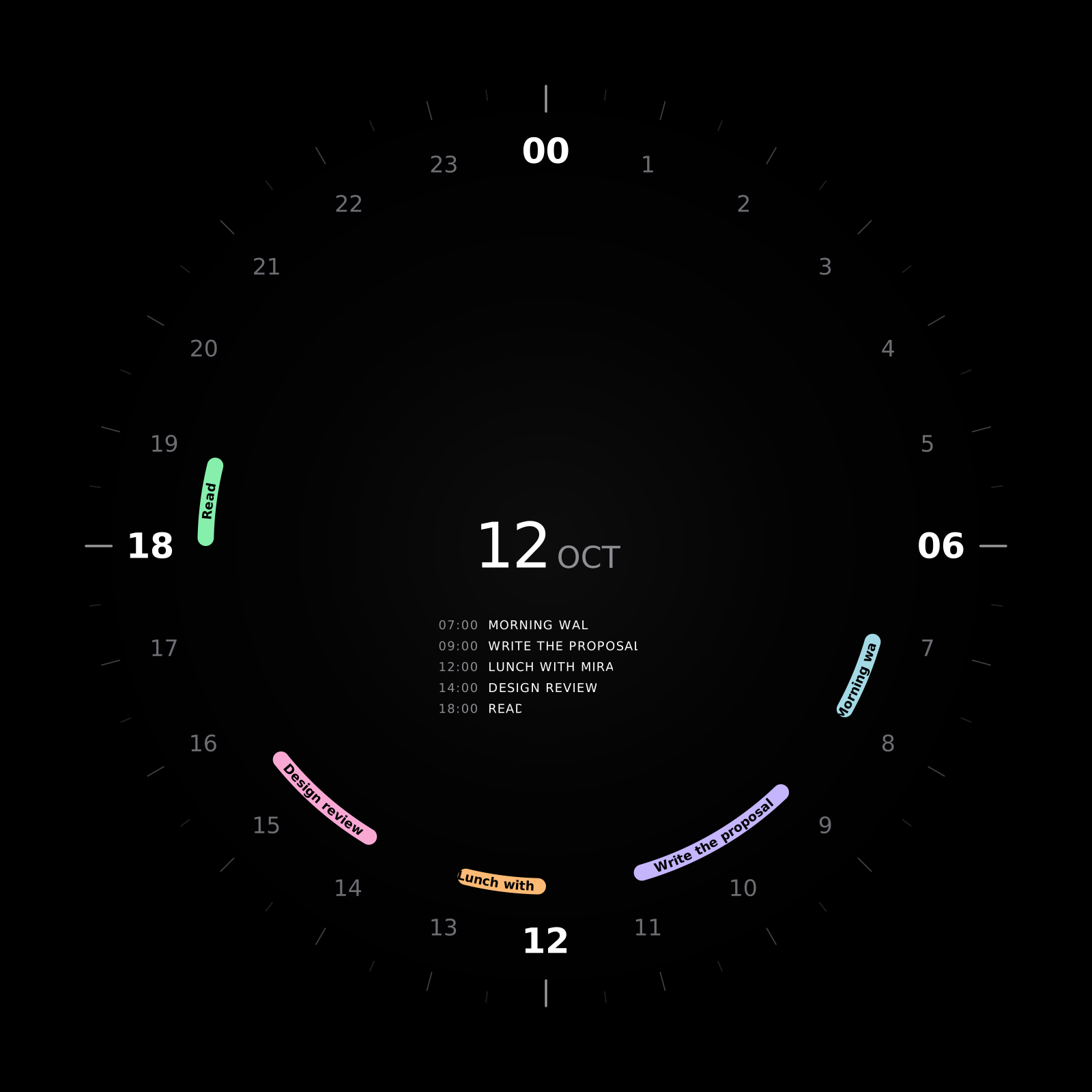

A day dial with hour labels around its circumference, coloured event arcs and the selected date in its centre
The centre shows the agenda and the next or current event.

Week strip

⌘E

Seven day faces share the same rotation, so an appointment at the same hour occupies the same angle across the week. Select a face to open its day dial. The week starts on the day you choose in Settings.

Seven small day dials arranged in a week strip, each showing that day’s events as coloured arcs
Compare occupied hours across seven days without changing the clock.

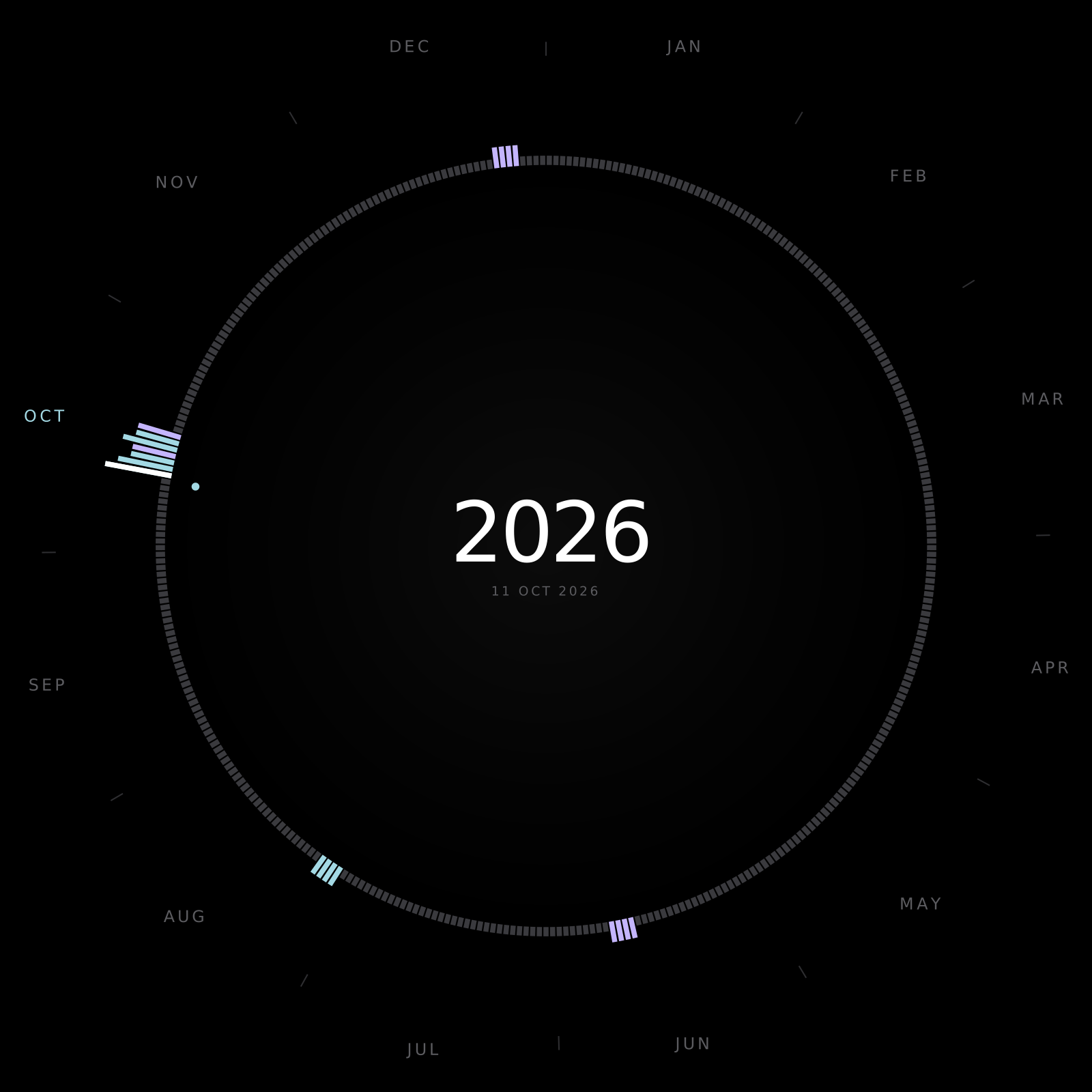
Year ring

⌘Y

One revolution is a year, with one mark per day. Event colours show which days carry something. Point at a mark to magnify it and read its date; select it to open that day.

Drag across the ring to create a multi-day event. A search in the command palette lights matching days, and the result stays visible after the palette closes.

A year ring with month labels and individual daily marks around the circumference, including coloured marks for days with events
Read the year in day order around the ring.

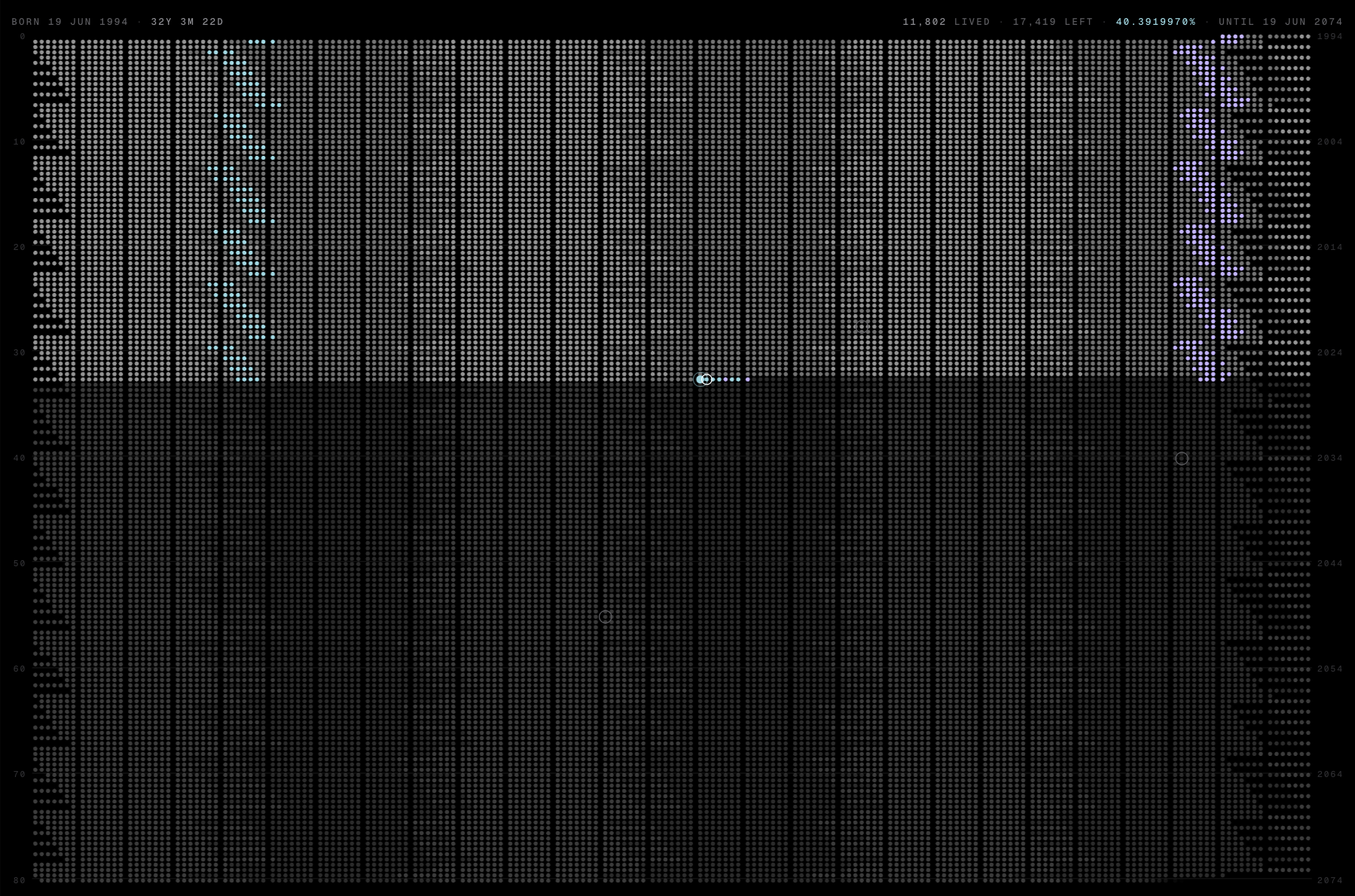
Life grid

⌘L

Give circal your birth date and an expectancy to see one dot per day across that span. Lived days and future days have different tones, with today marked in the grid. Expectancy is an estimate you choose, not a predicted date.

A life grid containing rows of daily dots, with different tones for lived and future days and a marker for today
Point at a day to read it, select it to open the dial, or drag a run of days for a multi-day event. Search lights matching days across the grid.

Make and move events

Drag on an empty part of the day ring to draw a time range. Let go to name the event in the editor. A click creates an event of the default length. Drag an existing arc’s middle to move it, or either end to resize it, in fifteen-minute steps. Escape abandons a drag.

Hold ⌘ while dragging an arc to make a copy. Moving or deleting a repeating event asks whether you mean one occurrence, that occurrence and all future ones, or the whole series. Subscribed calendars are read-only.

For a typed entry, open ⌘P and writelunch tomorrow 1pm 45m. The palette shows the resolved date and time before you commit. A duration such as 45m on its own lists free gaps that fit it.

Save a day or year face as SVG or PNG from Settings, Data, Save face. The image includes visible event details and is made on this device without an upload.

Plan time for tasks

Create a task with ⇧⌘N. A task has a deadline and can have an estimate and planned blocks of work. A timed deadline appears as a pip on the dial’s rim; a planned block occupies an arc. Tick the task off when the work is done.

Open the sidebar with ⌘B to find tasks grouped by deadline. Drag a task onto the day dial to place a work block at a particular time, or onto a week face to plan it for that day. The block uses its estimate, or the default duration if it has no estimate.

The sidebar’s Fill free time plans unfinished tasks that have an estimate and no blocks yet. It looks up to fourteen days ahead, soonest deadline first, for gaps within your waking hours that end before the task’s deadline. Existing blocks stay where you placed them. The notice reports tasks that do not fit, and ⌘Z undoes the run.

Auto-schedule runs that same rule on load and when a task arrives. It is off by default; turn it on in Settings under Day if you want circal to plan those blocks for you.

Connect an AI agent

The circal MCP server runs locally on your computer. It lets a connected agent read your agenda, find free time and change your own events and tasks. It uses a mirror file or your optional encrypted cloud copy, so the calendar tab does not need to stay open.

The agent receives readable calendar results even when the stored copy is encrypted. Your AI provider’s data policy applies to those results. Subscription feed events are absent from the connected copy, so the agent’s availability checks cannot account for them. Review the date and calendar before approving a change.

Open the assistant setup page to choose your client and connection, get its configuration and install the optional circal agent skill.

Keep a copy of your calendar

Your calendar is stored on this device. You can use circal without an account. Settings offers a JSON backup and restore, plus ICS import and export for other calendars. Clearing browser storage can remove your local calendar, so keep a backup somewhere else.

A mirror file keeps a live JSON copy on disk. A cloud copy lets devices signed in to the same account sync one calendar. These are optional connections, and only one can be live at a time.

Cloud sync encrypts the calendar on your device before uploading it. You sign in with an email code and unlock the copy with a passphrase. The service knows your sign-in email; it stores the calendar as ciphertext. Losing the passphrase loses access to that cloud copy, and there is no passphrase reset. Your local calendar remains on this device.

Public ICS subscriptions appear as read-only calendars. Install circal using your browser’s install control or Add to Home Screen for offline use.

The macOS shell

The repository includes a Swift macOS shell around the same app. It adds a menu bar countdown, native reminders, trackpad haptics and a local mirror file. Its global⌥⌘C shortcut opens the command palette from another app.

Build it from a source checkout with pnpm mac. ThemacOS documentation explains the shell and its build requirements. Browser installation remains available without building a native app.

Keyboard reference

⌘ means Ctrl on Windows and Linux. The app accepts either modifier and prints the one your keyboard uses. Some browsers reserve app shortcuts; the macOS shell passes them through to circal.

circal keyboard shortcuts and gestures
ShortcutAction
⌘PCommand palette: write an event, search, jump to a date, find free time or run a command
⌘N / ⇧⌘NNew event / new task
⌘,Settings
⌘Z / ⇧⌘ZUndo / redo
⌘D / ⌘E / ⌘Y / ⌘LDay / week / year / life view. Use ⌘E for week; browsers reserve ⌘W.
⌘BSidebar
← →Previous / next day; a week in week view, a year in year and life views
TToday
F / ⇧FAmbient / fullscreen ambient
⌘↵ / ⌘⌫ / EscSave / delete / cancel in the editor
⌘⌫Delete the event previewed by pointer or keyboard on the dial
⌘-drag an arcDuplicate it. The original stays; the copy lands where you let go.
⌘↵ on a ⌘P event rowDuplicate it into the editor to choose its time

Tab to the dial’s event list to browse the whole day. Arrow keys preview events; Home and End jump to the first and last. Enter or Space opens the editor, and Tab leaves the list.